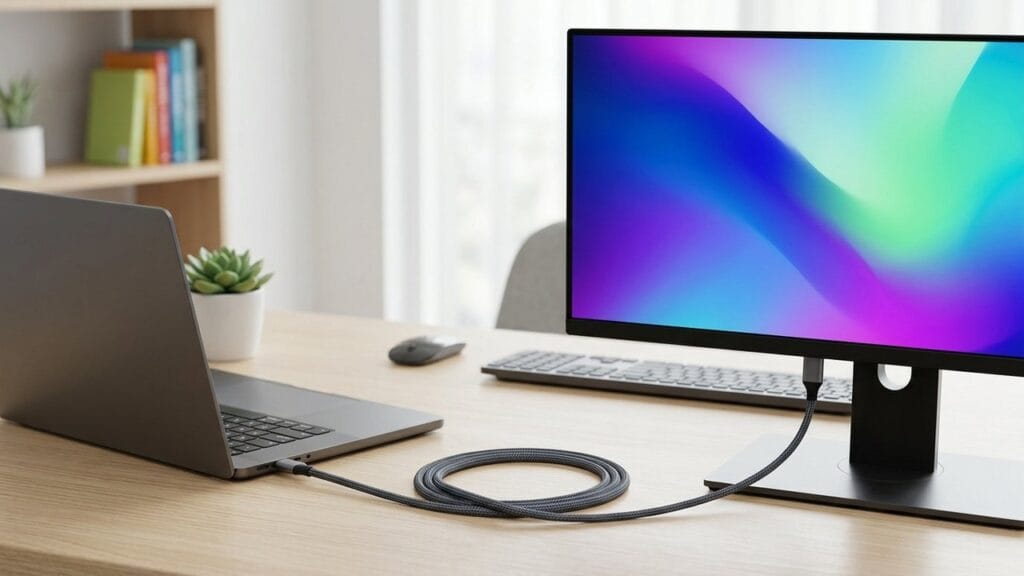
Modern laptops shed ports to stay thin, yet almost every desk still holds a big screen that wants a simple wire. A usb to hdmi cable closes that gap in a moment. It carries both picture and sound from a small port to a large display.
No dock is needed. No software either. A lone cable turns a slim laptop into a full workstation, and that plain fact is why the cable stays so popular. The screen wakes without a reboot, which keeps the work flowing. A cable that works right away avoids much quiet annoyance indeed.
What a USB to HDMI Cable Does
A usb to hdmi cable bridges a small rectangular port on a laptop or phone to the wide port on a TV or monitor. The picture travels over a video lane built into the small port, and the cable simply hands it across.
The trick rests on a feature called DisplayPort Alt Mode. A device that supports it can push a video signal out of its USB-C port. A device that lacks it cannot, no matter which cable you pick. Thunderbolt ports include the same ability by default. The small port hides a video lane that many owners never realize exists. A look at the spec sheet settles the question fast.
The Small Port That Carries Video
USB-C looks the same everywhere, but not every port behaves the same way. The ports that carry video advertise the Alt Mode in their specs. Checking that key detail before you commit avoids a cable that has to come back and a wasted afternoon.
Plug and Play
The best part of the whole setup is the absence of setup. You plug it in, the screen wakes, and the image appears. There are no drivers to hunt down and no menus to fight. The image arrives crisp with no tinkering at all. Colors stay true across it.
How the Signal Travels
A group of technical pieces work together behind the scenes. Knowing them helps you read the box and avoid the wrong model.
The Video Lane
Inside the small connector sits a high-speed video lane. It is the same lane that feeds docking stations and portable monitors. The cable just gives that lane a direct path out. A usb to hdmi cable turns that hidden lane into a usable display output. The video lane carries more data than the older ports ever could. That headroom keeps the picture smooth in motion.
The lane pushes enough data for crisp modern resolutions. A cable that meets the newer HDMI 2.1 standard can drive a super-sharp 8K panel at a smooth rate, or an ultra-HD panel at a very fast refresh. Older standards top out at ultra-HD and a standard rate, which is plenty for most desks.
What the Numbers Mean
Resolution measures sharpness. Refresh rate measures smoothness. A 4K signal at sixty hertz feels sharp and fluid together, and that pairing covers nearly every office and living room. Higher numbers exist for gamers, but most users never notice the difference beyond that point. Sharpness and smoothness work as a team on any modern panel. A desk that runs a big screen wants both at once.
Audio Rides Along
Sound travels through the same cable as the picture. Plug a laptop into a TV and both appear together, with no extra wire for speakers. That lone-wire convenience is a quiet reason people keep reaching for the same solution. Sound and picture staying in sync matters for films and calls alike. A lone wire keeps that sync simple.
Core Features to Look For
Not every usb to hdmi cable is equal. A few features decide whether the cable in your hand does the job well.
Resolution and Refresh
Match the cable to the display you own. An ultra-HD screen wants a cable rated for ultra-HD. A super-sharp screen needs the newer standard, since the older port cannot push enough data. Matching avoids a fuzzy or blank result.
Build Quality
The shell takes daily abuse in a bag. A braided jacket and a reinforced neck survive longer than a thin bare wire. Gold plating on the contacts resists tarnish, which keeps the signal clean for years. A sturdy jacket shrugs off daily wear without fuss. The shell keeps the inner wires safe from bends and pulls.
HDR Support
HDR adds richer contrast and deeper color when both the screen and the source support it. The cable must pass the HDR signal through untouched, and most modern units do. HDR deepens the picture when the source and screen agree. The cable just carries the richer signal without changing it.
Length That Fits
Long cables add resistance and risk. A short run keeps the signal crisp, while a very long run may drop frames. Measure the actual gap before you choose. A shorter wire stays cleaner in signal and looks neater on the desk. A longer wire works when the screen sits across the room. Matching the length avoids both a stretch and a snarl.
Who Uses a USB to HDMI Cable
The cable shows up in more places than people expect, and each group leans on a usb to hdmi cable a little differently.
Office Workers
A laptop becomes a dual-screen setup in seconds. The extra space holds spreadsheets, documents, and reference material, which speeds up every task that earlier involved constant window swapping. The extra screen space turns a cramped laptop into a proper desk. Tasks flow faster when dual views sit open together.
Home Theater Fans
A laptop or phone plugs straight into a TV for movies, shows, and slideshows. The couch becomes a home theater with zero extra hardware. A phone on the big screen makes family photos feel like an event. The living room setup stays tidy with a lone wire.
Presenters
Conference rooms still run on HDMI. A usb to hdmi cable lets any laptop drive the room screen without hunting for a spare dongle at the last second. A borrowed room and a strange screen are no trouble with the right wire in the bag. The setup takes a moment and needs no help desk.
Gamers
Players who want a bigger view connect handhelds and laptops to monitors. A stable wired link also avoids the lag that wireless casting can add. A wired link keeps the action tight with no added delay. Fast scenes stay smooth on the larger panel. Players notice the steadiness right away.
Choosing the Right Cable
A quick checklist separates a cable that works on the first try from a cable that comes back again. Ask these questions before you commit.
Check the Source Port
Open the laptop specs and look for DisplayPort Alt Mode or Thunderbolt. If neither appears, no cable will carry video, and you need a different path entirely.
Match the Display Standard
Pick a cable rated for the newest standard your screen uses. A usb to hdmi cable rated for the newest standard keeps every pixel intact. A cable rated below the screen wastes the screen’s ability. A cable rated above it simply leaves headroom for later.
Pick the Right Length
Short cables stay reliable. Choose the length that reaches without a tight bend, then leave a little slack for comfort. A quick glance at the spec page settles the port question in a moment. Matching the standard means the screen shows its best. The right length keeps the desk calm and tidy.
Care That Keeps It Working
A little care makes the cable last for years rather than months. The habits below take no time at all. A quiet routine of care asks nothing and doubles the life of the cable. The habits are the same ones that keep any wire working.
Coil It Loosely
Tight coils strain the wires inside the jacket. A loose loop preserves the signal path and the outer shell.
Protect the Ends
The connector necks are the weak points. Avoid yanking the cable out by the wire, and unplug by the plug itself. The simplest fix for a blank screen is often a fresh plug.
Keep It Flat
A pouch or sleeve keeps the cable from tangling with keys and other metal. Clean contacts stay reliable. A loose loop keeps the wire healthy for the long haul. Gentle handling at the plug ends prevents the common breaks.
Common Mistakes
Certain errors repeat across countless comebacks and support calls. A mismatched usb to hdmi cable sits behind most of them.
A common slip is grabbing a power-only wire and expecting video. Power-only wires look identical but carry no display lane. A power wire and a video wire can look like twins. Reading the label or the spec line tells them apart. Another error is choosing for a screen upgrade that has not happened yet, which wastes headroom the desk cannot use. A third is forcing a long run into a coiled mess, which invites signal dropouts at the worst moment.
Cable or Dock: Which Fits
A dock adds ports and power on top of video. A cable adds nothing but the screen. The right pick depends on what the desk needs.
When the Cable Wins
For a lone external monitor, the cable is light and simple to carry. It also means less to plug in when you sit down. A clean desk starts with fewer boxes.
When a Dock Wins
For several monitors plus a keyboard, a mouse, and wired network, a dock gathers everything into a single plug. The cable stays the simpler tool for a simpler job.
The Travel Angle
A cable slips into any pocket, while a dock needs real bag space. People who present often keep a cable tucked in the laptop sleeve at all times.
Why the Cable Keeps Winning
New wireless options arrive every year, yet the wired route refuses to fade. The reasons are steady and practical.
Wired Means Instant
There is no pairing, no password, and no buffering. Plug and the screen is on. That immediacy beats any wireless ritual, especially in a borrowed room or a tight schedule. A wire does not ask for a password or a pairing step. It simply works the moment it clicks in.
Wired Means Stable
A wire does not drop mid-presentation or stutter during a film. For the moments that matter, dependability wins over convenience every time. A steady wire never stutters during the big moment. Dependability wins when the stakes rise. The cable earns trust by never making a fuss.
One Cable, Two Signals
Picture and sound share the same path. That simplicity keeps desks tidy and bags light, which is hard for any rival setup to match. A tidy bag holds the wire and nothing else it needs. The whole kit weighs almost nothing. That lightness keeps the cable in the bag year after year.
Conclusion
For anyone who wants a big, vivid picture from a small modern device, a usb to hdmi cable is the simplest tool in the drawer. It needs no dock, no driver, and no patience. Match the port, match the standard, and the screen simply works.
The cable has stayed relevant because it solves a real problem with a plain wire. As long as laptops stay thin and screens stay big, that lone wire will keep earning its place in every bag. The cable solves a problem that never goes away. Screens stay big and laptops stay thin. The gap between them stays, and the wire keeps bridging it.
Frequently Asked Questions
What is a usb to hdmi cable?
It is a lone wire that carries picture and sound from a small USB-C port to the wide HDMI input on a TV or monitor.
Does it work with every laptop?
Only laptops whose small port supports DisplayPort Alt Mode or Thunderbolt can send video through the cable.
What resolution does it support?
Modern cables carry ultra-HD at a smooth rate, and the newest standard reaches super-sharp levels at the same smoothness.
Does it carry sound too?
Yes, audio rides through the same cable, so a TV receives picture and sound from a lone connection.
Do I need drivers or software?
No, the cable is plug and play, and the screen appears the moment the cable connects.
How do I pick the right length?
Measure the gap from device to display, then add a little slack, since short runs keep the signal strongest.